PCB Test Point Comparison Tool
Compares RefDes coordinates in old and new OrCAD HTML reports to find moved, added, and removed test points, with Target List filtering and a DXF board-outline overlay.
Last updated:
- Data handling and privacy
- All user files are parsed in the browser and are not uploaded to a server.
- Input formats
- OrCAD HTML、DXF、Target List
- Outputs
- Difference table、2D coordinate view、CSV
The interactive tool currently uses its original-language interface.
Purpose and usage
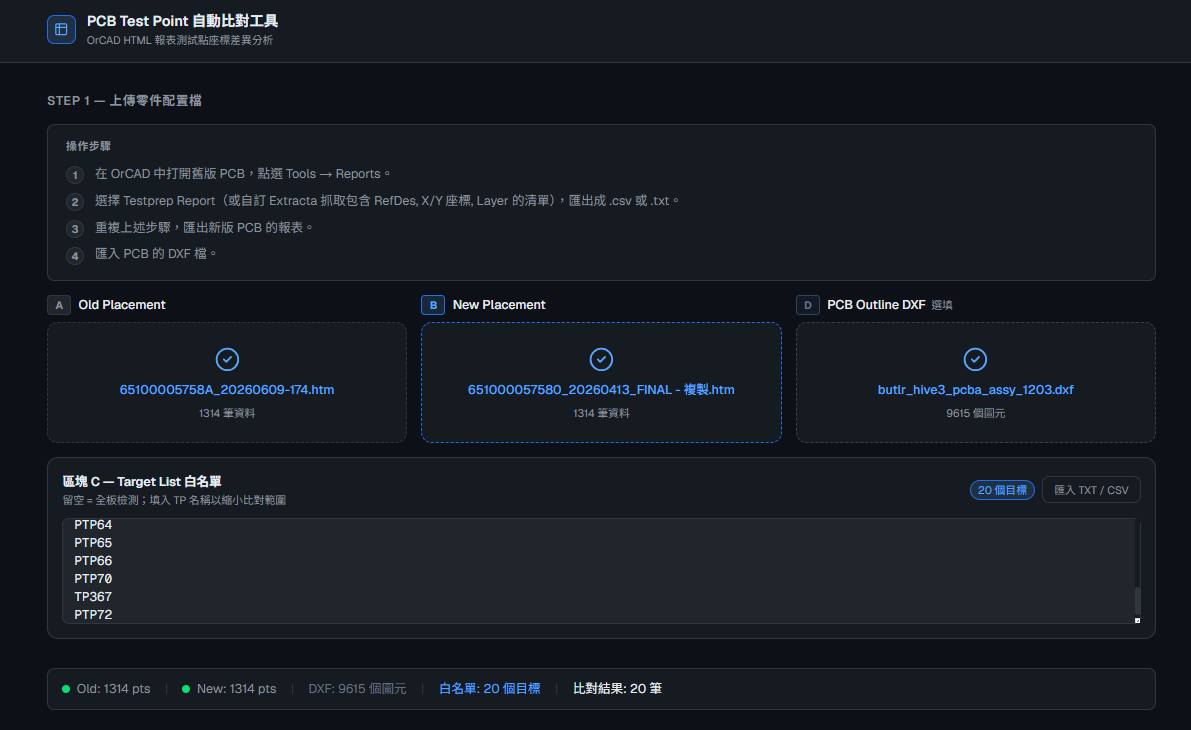
This tool is intended for PCB revisions where test points need to be checked by RefDes for movement, addition, or removal. Select old and new HTML reports, and the tool produces Moved, Added, Removed, and Unchanged results along with ΔX, ΔY, and displacement distance.
You can paste a Target List to compare only specified RefDes values, using one per line or comma-separated entries. A DXF file can optionally serve as a background. After importing it, adjust scale and offset to support visual inspection. The difference table can be exported as CSV.
Supported formats and limitations
- HTML/HTM: Reports must contain a table with RefDes, SYM_X, and SYM_Y columns. Some common X/Y column names are also supported. Report information may appear above the header row, coordinates may include thousands separators, and rows with a missing name, missing coordinate, or unparseable number are skipped.
- CSV, plain text, Gerber, and native PCB files cannot be used directly as coordinate-report input; CSV is an export format. First export HTML containing the required columns from the CAD system.
- RefDes matching is case-sensitive. If a RefDes is repeated, the last entry wins, so confirm that names are unique in the report. A coordinate difference greater than 0.000001 is treated as movement; this is not a configurable manufacturing tolerance.
- Coordinates are not converted automatically. Reports must use a consistent origin and unit. The CSV is labeled in mil, so use reports expressed in mil. DXF overlay scale and offset must be verified manually.
- DXF support is limited to ASCII LINE, LWPOLYLINE, ARC, and CIRCLE entities. Binary DXF, BLOCK/INSERT, and full CAD semantics are not supported. The parser prefers layers whose names suggest a board outline; if none are found, non-circular geometry is used as a fallback and may include lines that are not part of the outline.
- Files are processed in browser memory, so large reports and complex DXF files depend on device performance. Results are for engineering review and do not replace CAD, DRC, or manufacturing validation.
Data handling and privacy
Data does not leave the browser. Selected HTML, DXF, the Target List, and comparison results are not uploaded, and CSV is generated locally. Files must be selected again after a refresh. Loading the sample reads only public static synthetic reports from this site and does not require sign-in.
The site retains anonymous page-view analytics. Query strings and fragments are removed from page URLs, and analytics do not include user filenames, coordinates, RefDes values, or report contents. The custom event interface for opening a tool sends only the public tool slug. Visibility of Vercel custom events depends on plan support and the site's privacy filtering configuration. The site currently retains only anonymous page views, while visits to the application page can still indicate how often the entry point is used.
Sample input and expected result
Select “Load sample” in the tool to read two synthetic reports with no real PCB data. You can also download the old HTML report and new HTML report, then select them manually.
The expected result is TP1 moving from (100, 100) to (130, 140), with a distance of 50 and a Moved label. TP2 is Unchanged, TP3 is Removed, and TP4 is Added. The sample does not contain DXF and does not require a Target List.
Known issues and feedback
Report column names and DXF layers can vary across CAD versions. If the result contains zero rows, check that the HTML contains a table and the required columns, and confirm that coordinates are numeric. If the background does not align, first verify the DXF unit, scale, and origin.
Use “Tool feedback” in the footer to open the contact page and see the configured contact channels. When reporting an issue, provide the CAD version, column names, and a de-identified minimal example. Do not send confidential board files or customer data.